
An article by Ravi Kumar Gajul
Through this article, I would like to show you how to use XPath for identifying an object especially when there are multiple objects of same type and properties or if the object properties change dynamically.
Before we go ahead and use XPath in QTP, let’s understand some basic concepts on XPath
What is XPath?
XPath is a query language used to select and navigate through nodes in an XML document.
XPath uses path expressions to navigate and identify the element in the XML document
The advantage of using XPath is to identify any object in the application easily without wasting much time looking for combination of properties to make it unique. If you are working on a commercial application, you would see code like this.
<form>
<label for="male">Male</label>
<input type="radio" name="sex" id="male"/><br/>
<label for="female">Female</label>
<input type="radio" name="sex" id="female"/>
</form>
The use of these tags makes them easy to manipulate in your QTP test scripts
Frequently, however, this won’t be the case that you always have the luxury of having a consistent idattribute. A framework may generate this data dynamically. For instance, let’s consider a case, where you are trying to automate the submission of a form for which the source code looks like –
<form>
<label>Name:</label>
<input id="_id25:_id22" name="_id25:_id22" value="" size="15" type="text" />
<label>Handle:</label>
<input id="_id25:_id29" name="_id25:_id29" value="" size="10" type="text" />
</form>
At first sight, name and id attributes under the input tag seems to be making the job easy. But what if these tag values are randomly generated in your application and change on every run? Those label tags won’t help you either. The size and type attributes of the input tag are subject to change and too vague.
The smart thing to do here is write an XPath expression.
XPath Syntax
XPath uses path expressions to navigate and find the XML elements
Here is a sample XML document.
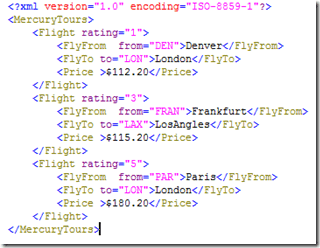
Let us use XPath to navigate and reach various tags and attributes in the sample shown above. In the table below, you would see the XPath Expressions on the left column and the Results on the right column. A blue selection indicates the selected path by the XPath Expressions.
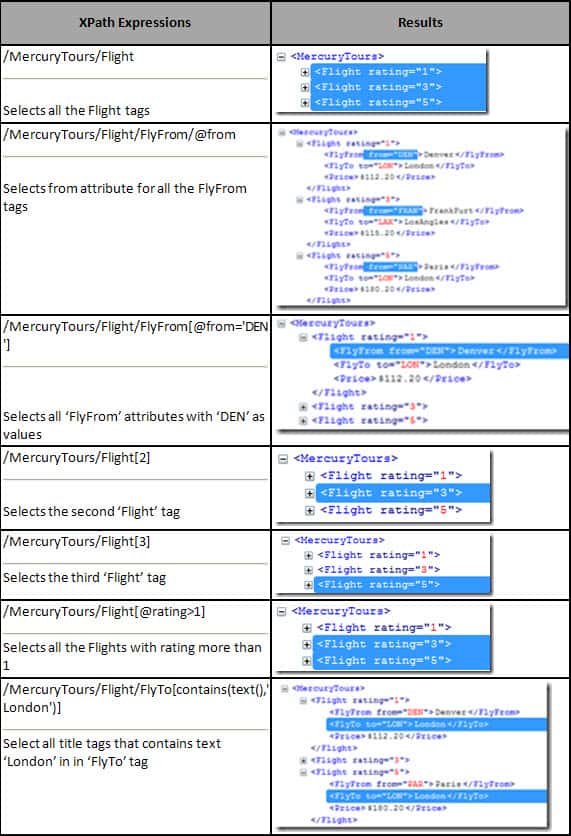
XPath Example
Let’s consider another html form as shown below. It’s a simple form with two input buttons with labels Name: and Handle:.

The source code of the form is shown below
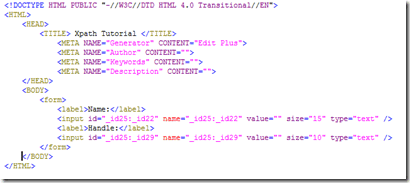
Let’s record few actions to input some values in both the text boxes. If the id attribute values of the input boxes are generated randomly every time the page is launched, the play-back would fail since the id values at record time and run time won’t match. Hence, in such cases we can use the XPath expression for unique object identification.
Here is what you are going to do to check the object identification by using Xpath expression in UFT.
Pre-Requisites
-
- Open UFT and create a new test.
- Disable Smart Identification for the Button test object by selecting Tools > Object Identification. Select Web environment, and then select the WebButton test object class from the Test Object classes list. Un-check the Enable Smart Identification checkbox.
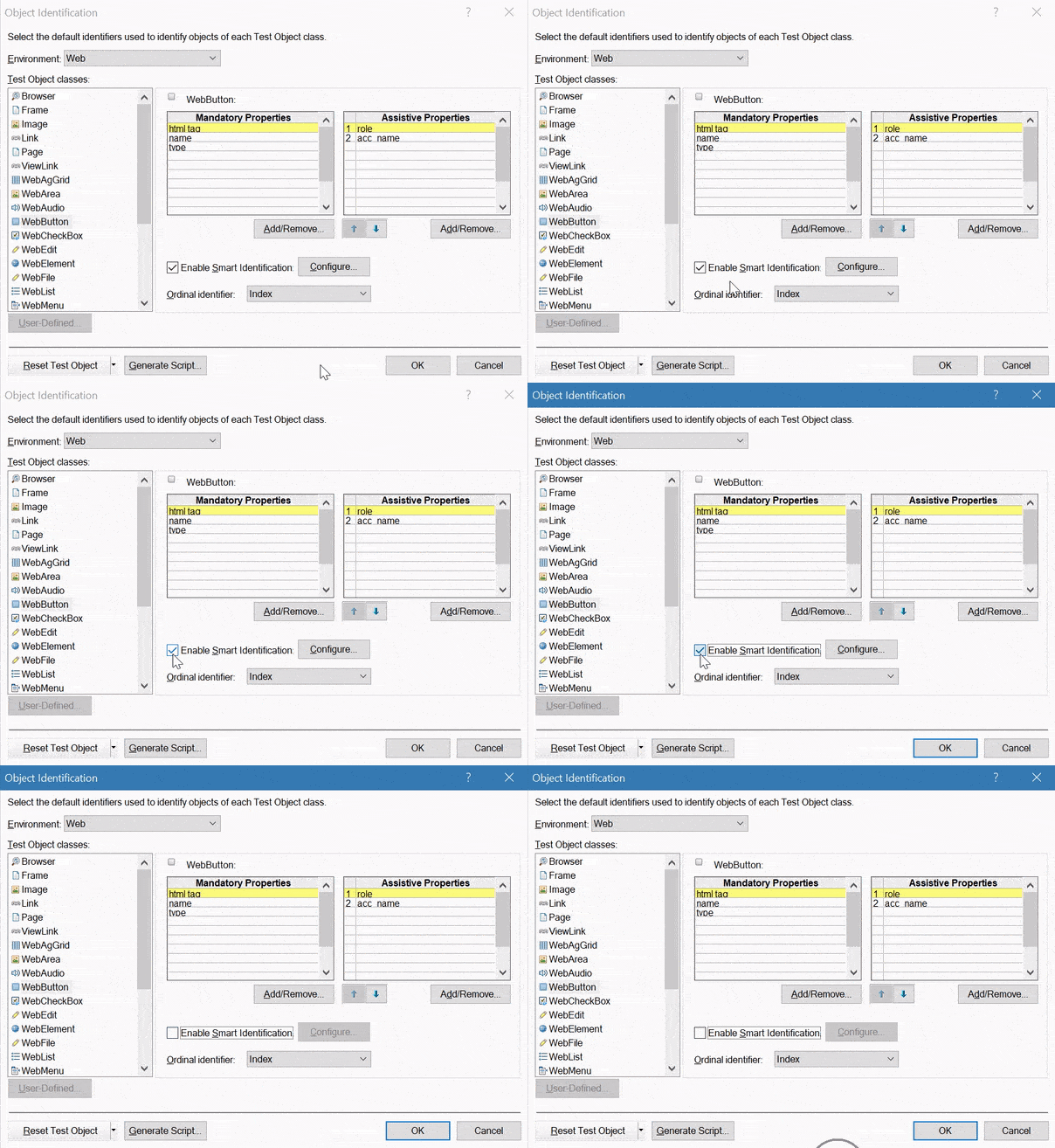
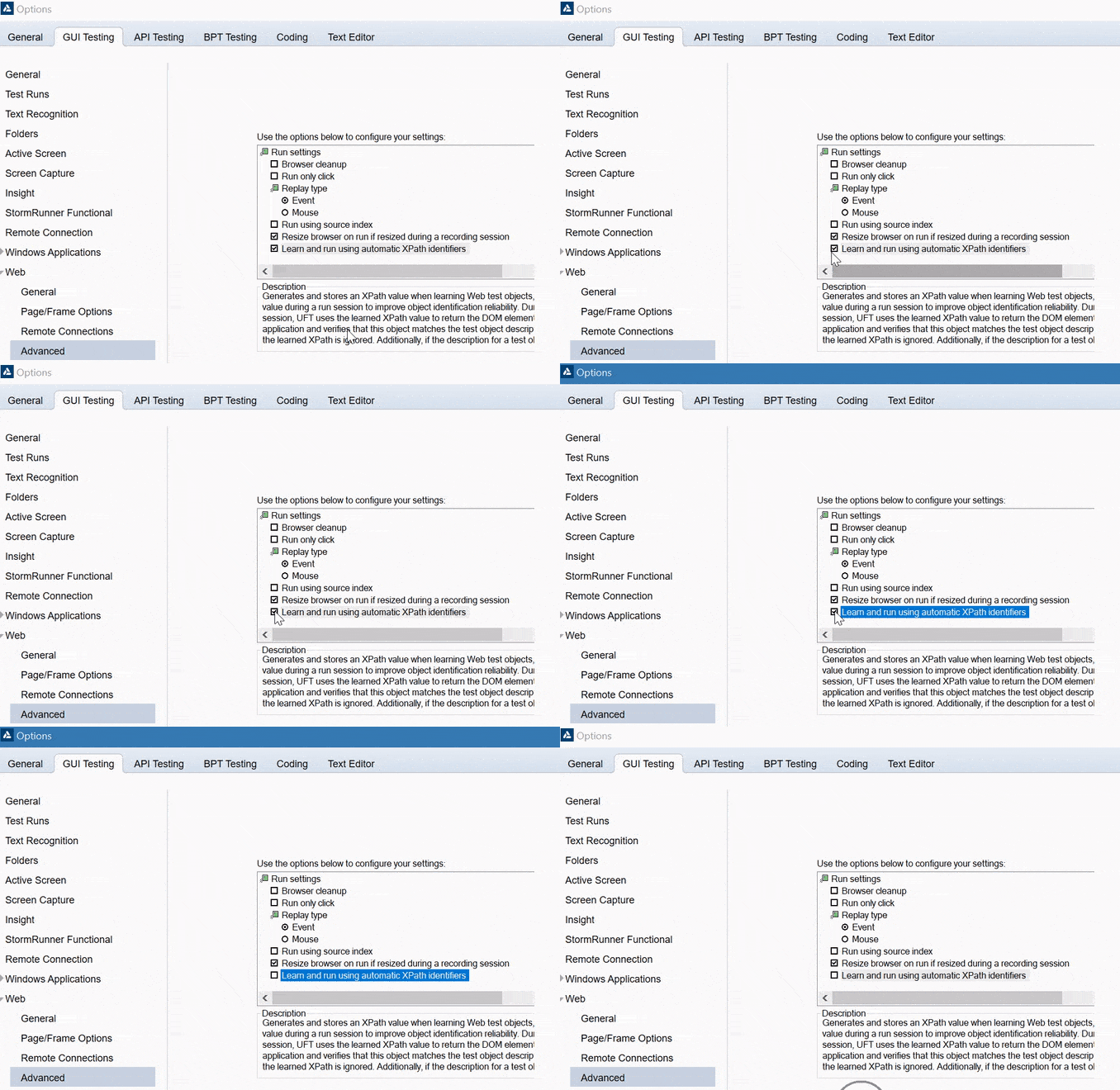
- Disable automatic XPath by selecting Tools > Options > Web > Advanced, and then making sure that the Learn and run using automatic XPath identifiers checkbox is not selected.
- Use this XPath demo on jsfiddle or Create a sample Web Application the source code for which is shown above.
- Now add the two input boxes to the object repository and delete the ordinal identifiers and
idproperties if added. - In the Object Description section, click the Add button, and add the XPath property to the test object description.
- To identify the first input box copy and paste the following syntax into the Value edit box.
- To identify the second input box copy and paste the following syntax into the Value edit box.
/html/body/form/input[1]
/html/body/form/input[2]
Results of XPath Expression
Select each object and select View > Highlight in Application. UFT can now identify each button based on XPath expressions you added above.
You Should Read These 3 Related Articles Too!





Can someone help me understand how to capture div value for div id=”four” in html page below:
(some title here)
WARNING MESSAGE HERE.
@Joseph: Your question is not clear. Please open a thread at UFT forums with your detailed query.
Can we in VB QTP capture the string value of element?
How would this be done?
example of html structure:
(some title here)
WARNING MESSAGE HERE.
Hi, I got an issue with xpath in UFT 12.02. I have updated xpath in OR and when i did objBrowser.GetROProperty(“xpath”) its giving empty value. What could the issue? Its working fine in UFT 12.54
Can you please let me know which is more efficient mechanism to identify web objects in QTP – Ordinal Identifiers or Xpath ?
@Priyanka: Haven’t yet checked the efficiency of Ordinal Identfiers vs XPath. However start with Ordinal identifier first.
Hi,
Can we execute same script with some objects are taken by Object spy and some objects are taken using xpath ?
Thanks,
Hi Anukar,
Can i use Xpath for locating elements in QTP version-10
I have one doubt in Xpath.
Chrome browser i need to identify the table object but no value is there. I tried Visual relation identifier also but due to dynamic it not working.
For xpath also there is no value in Description Properties hence i used developer tool in chrome and copied the value and pasted in description properties value.
In my xpath value *[@id = pgtemp:region_id_7:0:pgtemp:appcout]/table.
in above value is table xpath value. only that numeric value “7” is changed as 8 or 9 next time.
how to use contains function. Please help me to overcome this problem.
Note: there is no property for table object only i have html tag property as table.
Very Nice Article Ravi, Reading this article clears my concept of object identification using XPath.
filepath=”C:\CA-Nevada-Tax-APN-Freeform.xml”
xpathlist=”//tax_param//freeform|//tax_param//tax_qualifier”
newvaluelist=”murali|uppi”
Function updatexmlnodevalue(xmlpath,xpath,newvalue)
‘crete objpect for XML
Set xmlDoc = CreateObject(“Microsoft.XMLDOM”)
Set fso=createobject(“scripting.filesystemobject”)
If fso.FileExists(filepath)true Then
‘reporter.ReportEvent micFail,”specified file does not exist” ,” ”
Exit Function
else
‘load xmlfile
xmlDoc.load(xmlpath)
‘Locate the desired node
xpatharray=split(xpathlist,”|”)
newvaluearray=split(newvaluelist,”|”)
For i=0 to ubound(xpatharray)
xpath=xpatharray(i)
Set nNode = xmlDoc.selectsinglenode (xpath)
If nNode is Nothing Then
‘reporter.ReportEvent micFail,”specified xpath does not exist in xml file” ,” specify correct xpath ”
Exit Function
End If
‘Set the required value
nNode.text = newvaluearray(i)
‘reporter.ReportEvent micPass,”value of the Node is changed” ,” New value is set ”
‘Save the xml document with the new settings.
Next
xmldoc.save(“C:\test\CA-Nevada-Tax-APN-Freeform.xml”)
end if
End Function
Call updatexmlnodevalue(filepath,xpathlist,newvaluelist)
Excellent intro to XPath. It can be a hard concept to grasp but we have found it invaluable. If you aren’t aware, we have websites in multiple countries and multiple languages so it was a nightmare testing each site in each browser. Xpath (and to some extent Java) came to our rescue. Now we have one set of components and populate object properties via XPath depending on the site/browser being tested. For our new team members, it was easier to grasp when we told them to think of the object in the OR as an empty box with a name. We populate the object by pulling up the XML that matches the site/language/page we are testing and then using XPath, pull the object’s properties from the XML to fill the box so QTP can recognize the object on the page. When an object’s properties change (and it will), we just change the XML and don’t even touch the script.
The power of XML and XPath. 🙂
Thanks Ravi,
It was very informative. It looks like i might need to re-identify the objects(Changes to OR) if there were to be any changes in the screen( new fields added which will affect the sequence of the current fields).
Kind regards,
Praveen
Thanks Praveen, I’m glad you found it informative.As the DOM structure changes, the XPath will also change, which calls out for a change in OR.
Thanks Ravi for sharing your knowledge and explaining such complicated concepts in a very simple and a clear way. It helped me alot and can u let me know if you have any books written by you on this so that i can gain more of it. Please
I Ravi, Good to See your Artical On Net. Keep it up one day you will achive your Goal.
Won’t steps 2 and 3 of the pre-reqs need to be repeated on any QTP machine that we would want to run the script on?
@Mike pietsch
Yes,otherwise the script execution time increases as and when smart identification or automatic xpath identification is invoked.