
A series of articles on Database with QTP by your ever helpful moderator Saket.
Today almost all the software applications use relational database management systems (RDBMS) to provide persistency to the program. An RDBMS used in application could be the Oracle, SQL, Access, MySQL etc which depends on the requirement of the software program. Testing the functionality of a database is one of the most challenging tasks for software tester.
In this part of series we will discuss how we can use database checkpoint in QTP and in the later parts we will understand the key concepts and how to connect to a database using QTP scripting and how we can retrieve data from the database and other important facts. As a good tester you must have basic knowledge of writing query and verify its correctness based on the parameters. For this you will need to first understand the database of the application under test, which includes understanding the referential integrity, security, and data formats.
The most important Referential Integrity is basically the schema of the database- a visual diagram of all the tables in your database, which you can get from your development team. This is very important as it provides you all the basic information about your database like how the integrity has been maintained, table information, risks etc. Once you have knowledge on all the intricacies of the database you can begin with your testing.
While automating, the very first thing you may face is to connect to the database. Let us first understand the database Checkpoint. Database checkpoint is one of the checkpoints in QTP which is used to test the contents of the database accessed by application under test. It stores the expected data and compares this with the data stored in the database. When you use a database checkpoint in your script, it connects to the database and sends the query to the database to retrieve the current data into the record set. QTP now compares the current data with the expected data stored in the checkpoint and gives you the result as pass or fail. You can create a database checkpoint to confirm that the data being stored in the database does not introduce any error and you can do this by verifying
- The data is saved to the correct tables and in proper field
- The data on different operation in database like insert, delete, update
- The correctness of data etc.
To understand this lets take a very simple example for Flight Application. Suppose you are updating an order by changing the name, as in the snapshot below. You need to change the customer name to Learnqtp now and update the record. So if you want to verify whether the record is properly updated with the changed name or not, you use the database checkpoint. 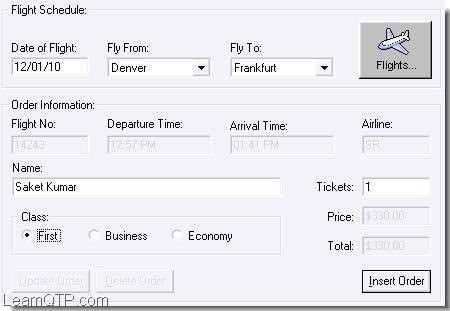
To create a database checkpoint in QTP following steps should be followed – Insert statements to update the record in your Script.
- Go to Insert > Checkpoint > Database Checkpoint. You will see a database query wizard.
- Select either of the two option there
- Create query using Microsoft query – Select this if you want to use Microsoft query.
- Specify SQL statement manually – Select this to manually provide the sql query to the database. We will use and go with this option now. Click ‘Next’ once you selected the query definition.
- Click ‘Create’ button, which will open the data source window, Select ‘Machine Data Source’ and click new. ( To Connect to flight application database there is already a data source as QT_Flight32, we can directly select this press ‘OK’ and jump to step 7)
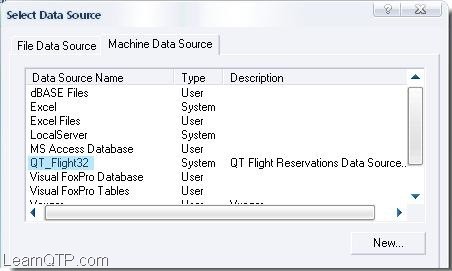
- Create New Data Source window opens, Select the type of data source and click Next
- Select the Driver depending on the database type from the list. For example if your database is SQL – select ‘SQL Server’, for Oracle – select ‘Microsoft ODBC for Oracle’ and follow the onscreen wizard with the details of your database like server name database name etc. Finally Test the connection and press ‘OK’
- You will see the data source name just created in the list at Machine Data source. Select and Click ‘OK’
- Specify your sql query e.g. for above mentioned example – ‘Select Customer_Name from Orders’. Click Finish
- It will Open the Database Checkpoint Properties, modify your checkpoint settings, enter the expected data and Click ‘OK’
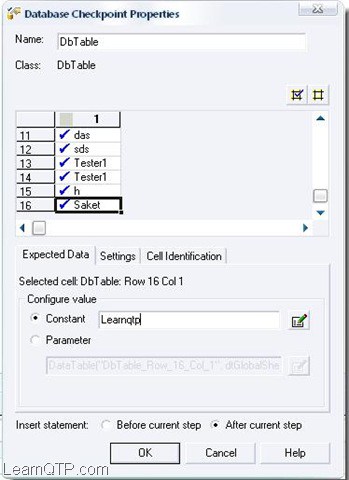
It will add a line in the expert view as:
DbTable("DbTable").Check CheckPoint("DbTable")
When you will run the script QTP will check the database whether the record is updated with the customer name or not and will give you the result as pass or fail. DbTable is the database table object, which has following properties and methods associated with it.
- Exist Property –checks whether the database table exists
- GetToProperty method – is the same method used for test objects to get the specified identification property.
- SetToProperty method – is to set the specified identification property.
There could be three identification properties of a database table object – Source, dbuniqueid and connectionstring. So we can parameterize the database checkpoint using these properties and methods, for example if you want to use the same checkpoint to run for more query use the ‘SetToProperty’ method to set the source of the DBTable. Following example illustrates above methods
If DbTable("DbTable").Exist (0) Then
Print " Current query : " & DbTable("DbTable").GetTOProperty ("Source")
DbTable("DbTable").SetTOProperty "Source", "Select * from Orders"
Print " Modified query : " & DbTable("DbTable").GetTOProperty ("Source")
End If
Result
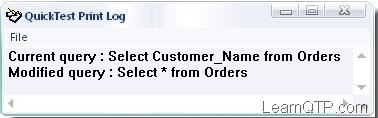






Hello,
currently working on UFT to create a new contract. Once contract is created I want to validate in the database(means compare if the new contract created appear in the database) using SQL, Please help me how I can do that(code). Thank you in advance…
Hi Ankur,
I have to test my application against two databases. Can we run same QTP script against two different databases at same time?
Thanks in advance,
Nilima
Hai Ankur, Am Nagaprasad here can u mail me entire QTP notes plz…….
Hi Ankur,
Very useful .. and i need to know about some web application testing tools in open source please….
Thank you
hi Ankur vijay here, i need licenced version of 10.0 testing tools need, plz help me
@Vijay: Only HP or their resellers can help you with licenses versions.
hi sir
i want to start my career into testing i m fresher please guide me
thanks
@bineet: It’s quite an open-ended question. Difficult to say anything without knowing more details.
hi Ankur Vijay here I need the software of testing tools new version plz help me from where I can get the software?
@Vijay: Which testing tool are you talking about here?
hi,for database testing, is there any projects to do at home guide me ,i want to do any project regarding dabase testing
Thanks Ankur, great article!
I need to compare some tables in the database and then to send diff to our developers. Database Checkpoint works pretty well and shows all the diff, however I can’t export this Captured Data and send it as attachment to our development team. HP Run Result Viewer allows to export only Step Details, Data Tables, Log Tracking, Screen Recorder and System Monitor but not Captured Data.
How to export this Database Checkpoint Captured Data and to send it as attachment? Ideally I need an XLS file with diff beetwen Expected and Actual data. Is it also possible to instract QTP to ignore insignificant rounding differences?
Any advice would be greatly appriciated … thanks! Dmitry
which of these is a valid database checkpoint??
a)per test db checkpoint
b)standalone db checkpoint
c)custom db checkpoint
Hi sir.
This blog is very helpful for me nowadays. because 2 days back i completed my qtp training session. but during those sessions i didn’t learn DB-testing,this topic was skipped by my mentor. so it really helped me a lot.
Thanks
Mritunjay kumar
Hi Ankur,
Thanks for the article.. I need the setup of QTP 10.0 Where can I get that from???
Cheers
Thanks
Darshil
Hi Ankur,
I am trying to connect QTP with IBM DB2.Can you please help me to provide simple way to connect the same.
Thanks in advance…
hi
can u please explain with an example that how database tester will do when he want to write a script.
pls send me some test scripts to my mail id: uday.k579@gmail.com
hello sir
how to add objects in object Repository
In My Test I have 100 check points, How can I know the status/result of each check point in the test at run time. I want to print that stats in Excel sheet.
( I know we get the result of the check point can be known from the result viewer, but it is not used from my scenario).
Another is :
If Browser(“Order List”).Page(“Home Page”).Check(CheckPoint(“Home Page”)) = “Pass” Then
Msgbox “pass”
Else
MsgBox “Fail”
End If
“this also not suitable for me.
Plz give the Best solution for me.
hai Ankur,
this tutorial was really very helpful.
I am attending for the interviews with 3 years of exp.automation(qtp),vbscript.plz give a interviews qustions.
Hi Ankur,
This tutorial was really very helpful.
One point, I was not able to understand before was how qtp recognizes the manual scripts written in excel, got cleared with this tutorial.
I really appreciate your help from the core of my heart.
Thank you so much.
Regards
Jyotsna
Hi Ankur,
Very good article.
Hi Ankur,
This is very good and helpful article.
Ankur i have one query regarding DB connectivity
I would like to connect the database without using ‘DSN’. I searched this on Google as well and tried on this but didn’t get success. Can you please help me? so can I archive my target
Thanks
Yogesh Shah
hi ankur
thanks for your helping how we test SQL and any other data base without use Object Repository
hi ankur ,
thank u so much for this wonderful article
recently only i am looking learnqtp.com and i am new to qtp ,but your articles are grate and attractive as well as users comments also much help full to me by reading those comments i am reviewing concepts
ankur if you don’t mine plz send me interview questions on qtp and also on testing
my mail ” pavankumarbaddiputi@gmail.com ”
“guys your rocking with your comments”
any body have interview questions on qtp send me ….
Great article
Hi, I need to parameter a field value with data’s from a table in Database SQL. can any one guide me
can i get database result xml file in qtp?
hai to all,am attending for the interviews with 3 years of automation(qtp),vbscript.am not able to write the scripts in interviews.please anyone send me important scripts with answers of clear explanation with comments for each step.please send me mail to:gangadhar.boyapalle@gmail.com
Hello Ankur, How are you?
Thank you so much for your help, you are sending a very good information. I am new to QTP , can you tell me with out any knowledge how can we know when to put check points to the which line while we are doing qtp. Is there any book that i can read and able to under stand the logic
I don’t know maybe iam confusing to under stand the system can you please help me
hi ankur…!
u made the learner life easy to find the right guide to learn more about qtp…..am truly happy the way you are fixing out the solutions on every query on QTP……hope fully move forward for next to learn from u …..
thank u ….!
Hi Ankur,
I having some query .I am getting job in automation testing .but But it is by using c# scripting language . hows the future of this back ground i need your suggestion
plz give me reply. and also i want to make carrier in automation testing . if u can suggestion plz i am waiting for your reply
THANK YOU
Great article.
I need some help on PDF file automation by QTP…please suggest where can I post my questions?
Hi Ankur,
I have a small doubt in qtp, how to check wheather the query is executed or not.i am using the below scrtipt for execution of the query
Set objCon=Createobject(“Adodb.Connection”)
Set objRs=CreateObject(“Adodb.RecordSet”)
objCon.Open strDSNName
strQuery = “SELECT * FROM ” & strUnitTable & ” WHERE BLC ‘NONE’ AND variable > 1 AND variable < 3 ORDER BY UnitNum" 'query the database
Set objRs = objCon.Execute (strQuery)
after this code script is not go to the while loop
While ( Not objRs.EOF)
Print "Testing Purpsoe"
Wend
Hi All,
For database connection, you can use below statement:
Set Oconn = CreateObject(“Adodb.Connection”)
Oconn .Open Strconnet,Path
‘StrConnect is used to specify the database source name na Path is to specify the path of datbase
Set resultSet = Oconn.execute( “Select * from tablename”)
when you update checkpoint with your expected value, it means you are expecting that value when you DB is updated, so expect that value, which you are entering into database.In this case you are expecting value ‘ABC’ and entering XYZ, so actually XYZ is there in the database not ABC and so it fails.
does this help?
Hi Saket,
Very good article.
I am learning QTP and this is my first attempt using Database Checkpoint.
Following your guidance, i recorded script using Flight application.
1. Enter name as “XYZ”
2. Stop recording.
3. Insert database checkpoint as mentioned above and changed value to “ABC”
4. Run the test.
My test fails.
It shows Expected Value : ABC and Actual Value “XYZ”.
I dont understand how should it work. Why it is not updating “XYZ” with “ABC”
Please guide.
Thanks,
Radhika
Hi Saket
It is good ariticle and it is very esay to read and could understand the concept. Well job
Hi,
Do you know if QTP supports sparql query?
Thanks,
Mohammed
Hi Laxman,
Can you elaborate your query mentioning how you are trying to connect to DB, if required paste the statements and put your query at http://www.learnqtp.com/forums/ ?
Hi
Can anybody can told how to connect flight reservation table showing db error “data source name not found and no defalut driver specified”, can anybody fix the above error. Can I change the sys date for running of above app.How can i connect flight32 database.
Regards
LAXMAN
Hi i need code for the following details.
how can we drive the data automatically into the application(offline app) from excel send me the code the application written in the VB6.0 and the data base we are using is MS access.
NOTE:the database is a password protected database
HI,
There is any options for writing descriptive program using checkpoints manually with out recording….If there is any option tell with some examples…
Tnks in advance…
con.open “Server=192.168.10.35;Port=-1;Database=efare_qa_2_1;Uid=efare_qa_2_1;Pwd=yana123;”
when i use above con, QTP shows below error
“[Microsoft][ODBC Driver Manager] Data source name not found and no default driver specified”
Can any one help me to connect MYSQL to QTP using vb script.
HI,
I need a query to get the enterprise name from the database …..
Hi Sateesh,
This has been discussed in Part 2 of this series.
http://www.learnqtp.com/qtp-database-part2-how-to-create-connection-strings/
hi while creating DB check point, it is asking for connection string.. can anyone suggest me wat is connection string.
Hi Ram,
Thanks for Pointing this, I have tried to explain the same in later parts of this series. Please continue reading Part 2 and 3.
Saket,
Can we reuse the connection information (connection string) between multiple database checkpoint Or every time we add database checkpoint we need to specify the data source?
Certainly it’s fact that all checkpoints in QTP are part of their beginner friendly marketing.
For database check, automators should use programmers approach… create data access function(s) using ADO and maintain connection string information in Environment file (similar to global.asax in .Net and property file in J2EE). All you need to do is call getRecordSet (or any name you give) function and provide the sql variable and database name as input and get the result set returned back. than check record-set against the value being displayed on the application. It will increase the readability and re-usability of your code.
Though checkpoints are useful they are not the solution in all scenarios.
happy programming!
Hi Hitesh,
refer this Post
http://www.learnqtp.com/qtp10-supports-windows7-windows-server-2008-r2/
Hi Ankur,
we can install QTP 9.5 or 10.00 version on Windows 7 OS ?
Pl reply me urgent.
Hi Manpreet,
QTP 9.2 does not support IE8, you will have to upgrade to QTP 10.
Hi ,
I have IE8 and want to Run QTP 9.2 on it .But its not working .I know that if i uncheck the activeX controles it will run but there are some additional dialogs that are comming in IE 8 so Can any one tell what else setting i need to chnage in IE 8 so that it becomes Equvalent to IE 6.
Thanks in Advance.
Manpreet
HI
Iam using QTP 10 and using DB checkpoints we have to run the scripts on multiple databases we are having trouble with DB checkpoints for Numaric and string values. Because QTP did not allow to put numaric and string checks in one single db checkpoint so we have to put 2 checkpoints on the same table one for string values and one for numaric values .
if the numaric value do not have decimal places its fine under the string checkpoinjt but the problem arises when there are decimal places .
here is the sample data
lets say we have a table books which have 2 columns
DB 1
Book Name , Price
ABC 100
ZAV 100.0
DB 2
Book Name , Price
ABC 100
ZAV 100.00
if we put a single checkpoint on DB 1 it will fail on the second db untill unless you put the price columns as numaric check .
but the trouble is you can not put the numaric and string checks togather in one db checkpoint.
in our case we have to put 2 db check points for the tables where we have both types of data in the table. Anybody know the solution so that we do not have to put the 2 checkpoints every time Thanks for you help .
Hi Varun,
In the next part of this series you will get some good example and ways to connect to DB. all the required params will be explained in the next part.
Nice article Saket, will definately try to use it in our scripts.
Thanks
Good coverage of ‘DB CheckPoints’. Nice article. Awaiting for the Part2. 🙂
nice post , but the thing which is my time killer is the code snippet for connection to DB . i always copy paste it to make a succesfull connection but i was looking for some simple and well defined code to make a connection.
i always used this :
set con=Createobject(“ADODB.Connection”)
Srvname=”Driver={PostgreSQL ANSI};DATABASE=XYZ;SERVER=000.000.000.000;PORT=5432;UID=postgres;PWD=;CA=a;A6=;A7=100;A8=4096;B0=255;B1=8190;BI=0;C2=dd_;;CX=1b503bb;A1=7.4″
con.open Srvname
Set Rec = CreateObject(“ADODB.Recordset”)
SQL=”update tablename set xyz= ‘900’ where id=250316″
Rec.open SQL ,con
all is fine with above code but i always get confused while writing the value for DATABASE ie :
Srvname=”Driver={PostgreSQL ANSI};DATABASE=XYZ;SERVER=000.000.000.000;PORT=5432;UID=postgres;PWD=;CA=a;A6=;A7=100;A8=4096;B0=255;B1=8190;BI=0;C2=dd_;;CX=1b503bb;A1=7.4″
Can you make life easy
Hi Ankur,
this is good article….
i have one doubt, can we able to compare sql query result data with data in external .xls file
by using database check point.
if not, please provide solution how we can do it….
Thanks,
Hi Ankur,
How are you?
I have one query. I would be grateful to you if you will help me in solving my query:-
I am using licensed version of QTP 10.0. My application is based on flex and QTP is not able to recognise the flex objects. I did some r&d on it and found that there is flex add in available but I did not find the trial version.I would request you to please share your thoughts on automating flex objects as well so that I could proceed further with my target.
Many regards,
Ana
.